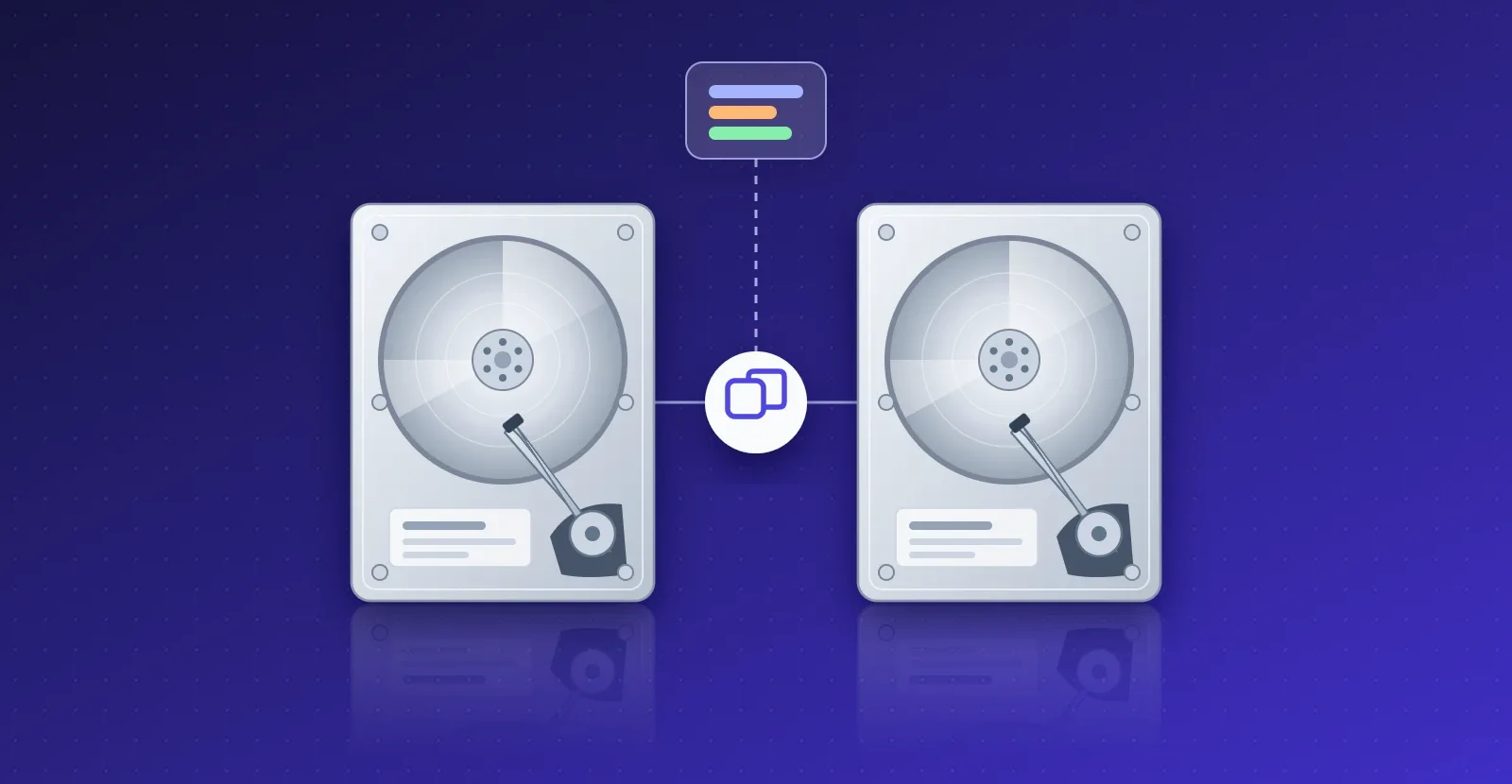
Most small servers start with a single disk. Everything works until that disk fails, and then the operating system, the database and every uploaded file go with it. If the machine has room for a second disk, RAID 1 removes that single point of failure for the price of the second disk.
This guide walks through setting up software RAID 1 on two disks with the Ubuntu Server installer, how to check it afterwards, and why we chose it over RAID 0 for read-heavy web applications.
RAID 1 vs RAID 0 in one minute
RAID 0 (striping) splits data into chunks and spreads them across both disks. Large reads and writes get close to twice as fast, and you can use the full capacity of both disks. If either disk fails, everything on both is lost.
RAID 1 (mirroring) writes the same data to both disks. You get the capacity of one disk, and the server keeps running if either disk fails.
Speed is where the choice gets more interesting than it looks. Linux software RAID 1 sends each read to whichever disk is free, so when several requests read at once, both disks work in parallel. Writes have to reach both disks, so they run at the speed of one. Web applications mostly read: pages, images, database rows. For that kind of workload, RAID 1 gives you most of the read speed of RAID 0 and keeps your data safe.
What we measured
On a test server with two 500 GB, 5400 rpm laptop drives in RAID 1, we ran fio against the finished mirror with direct I/O, so the page cache could not hide the disks:
Sequential read, one reader: 101 MB/s, the speed of a single disk.
Sequential read, four readers: 182 MB/s, close to double, because both disks served reads.
Sequential write: 93 MB/s, the speed of a single disk, because every write goes to both.
Random 4K reads: 102 IOPS one at a time, 183 IOPS with 32 requests in flight.
RAID 0 on the same drives would roughly double sequential writes and single-reader throughput. For a read-heavy server, that is not worth making one disk failure a total loss.
Before you start
Use two disks of the same size. A mirror is only as large as its smaller member.
Check that both disks are healthy. Install
smartmontoolsand runsudo smartctl -H -A /dev/sdafor each disk. Look atReallocated_Sector_Ct,Current_Pending_SectorandReported_Uncorrect: anything above zero is a warning sign. A mirror built on a dying disk protects you for less time than you think.Back up anything you need. The installer wipes both disks.
Know how the machine boots. This guide assumes UEFI, which almost every machine from the last ten years uses. You can check from a running Linux system with
ls /sys/firmware/efi: if the directory exists, it booted with UEFI.
Step by step in the Ubuntu Server installer
We used Ubuntu Server 24.04 LTS. When you reach the storage step, choose Custom storage layout, then:
Free both disks. Delete any old volume groups or RAID arrays that use them, then choose Reformat on each disk. Nothing is written until you confirm at the end.
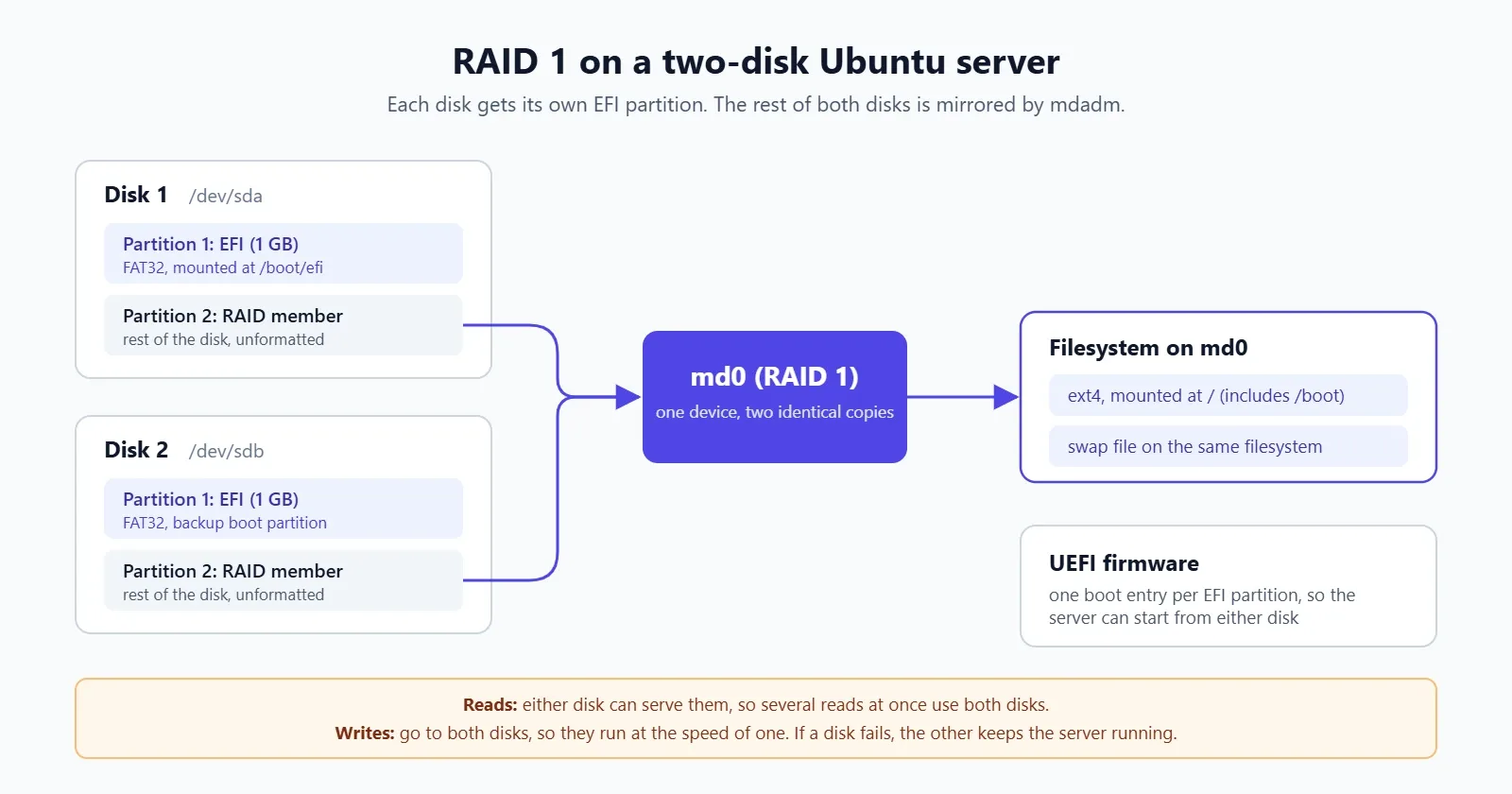
Create a boot partition on each disk. On the first disk, choose Use As Boot Device. On the second, choose Add As Another Boot Device. Each disk now has its own EFI system partition, so the machine can start from either one.
Add one large partition per disk. On the free space of each disk, choose Add GPT Partition, leave the size empty to use all of it, and set the format to Leave unformatted.
Create the array. Choose Create software RAID (md), name it
md0, pick RAID level 1 and select the two unformatted partitions. Do not select the EFI partitions.Put a filesystem on the array. We created one ext4 partition on
md0, mounted at/. The installer then adds a swap file automatically. You can also create separate partitions for/bootand swap onmd0, or put LVM on top of it if you want to resize volumes later.Check the summary and select Done. You should see an EFI partition on each disk and everything else on
md0.
The mistake to avoid
If you build the array from the two whole disks and put everything on md0, the installer stops with "Select a boot disk". UEFI firmware cannot read a RAID device, so the EFI partition has to sit outside the array, with one copy on each disk. Steps 2 and 3 take care of that.
After the install: the first sync
When the system first boots, the RAID driver copies one disk onto the other in the background. On 500 GB laptop drives that takes a couple of hours, depending on how fast the slower disk writes. The server is usable during the sync, but anything disk-heavy is slower, so run benchmarks after it finishes. Check progress with:
cat /proc/mdstatA line such as resync = 42.0% shows the progress and an estimated finish time. [UU] means both disks are active. [U_] or [_U] means one disk has dropped out.
Verify the setup
lsblk -o NAME,SIZE,TYPE,FSTYPE,MOUNTPOINTS
sudo mdadm --detail /dev/md0
efibootmgr
Each disk should show a vfat partition and a linux_raid_member partition. mdadm should report the array as clean with two active devices, and efibootmgr should list an Ubuntu boot entry for each EFI partition.
Benchmark it yourself
Install fio with sudo apt install fio, then test sequential reads and parallel random reads against a 4 GB test file:
fio --name=seqread --filename=$HOME/fio-test --size=4G --direct=1 --ioengine=libaio \
    --rw=read --bs=1M --iodepth=8 --runtime=30 --time_based

fio --name=randread --filename=$HOME/fio-test --size=4G --direct=1 --ioengine=libaio \
    --rw=randread --bs=4k --iodepth=8 --numjobs=4 --runtime=30 --time_based --group_reporting

rm $HOME/fio-test
Compare one reader with several. On RAID 1, parallel reads should come out well above what a single disk can do.
Keep the mirror healthy
Make sure someone hears about a failed disk. A mirror that has silently lost a disk is a single disk again.
mdadmsends alerts to the address inMAILADDRin/etc/mdadm/mdadm.conf, which isrootby default, and Ubuntu runs a daily check throughmdmonitor-oneshot.timer. PointMAILADDRat a real address and make sure the server can send mail.Watch disk health. The
smartdservice fromsmartmontoolschecks each disk's SMART data and can warn you before a disk fails outright.Let the monthly check run. Ubuntu enables
mdcheck_start.timer, which reads both disks once a month and finds bad sectors while the other copy can still repair them.Replacing a disk is routine. Mark the failed member and remove it with
sudo mdadm /dev/md0 --fail /dev/sdb2 --remove /dev/sdb2, fit the new disk, give it the same partitions, then add it back withsudo mdadm /dev/md0 --add /dev/sdb2. The array rebuilds in the background. Recreate the EFI partition on the new disk too, so both disks stay bootable.Keep backups. RAID 1 protects you from a disk failure. It does not protect you from a deleted file, a corrupted database or a stolen machine. Copy the data that matters somewhere else.
When RAID 0 makes sense
RAID 0 is a fair choice for data you can recreate: build caches, scratch space for video or data processing, or a replica you can rebuild from elsewhere. It is a poor choice for the operating system or a database you cannot afford to lose. And if raw speed is the real goal, an SSD changes far more than striping two hard drives. A single SATA SSD handles tens of thousands of random reads per second, against one or two hundred for a laptop hard drive.
Summary
RAID 1 mirrors two disks so the server survives a disk failure, and Linux reads from both disks at once, which suits read-heavy web applications. In the Ubuntu Server installer, give each disk its own EFI partition, mirror the rest into md0 and put your filesystem on top. Let the first sync finish, check /proc/mdstat, set up alerts so a failed disk does not go unnoticed, and keep backups, because a mirror is not one.